Passwords, passkeys and 2FA: the 20-minute setup that covers most of the risk
Five steps, done in the right order, protect you better than a full security overhaul. Start with the one account that can reset all the others.

The short version
- Secure your email account first, because it can reset almost every other account you have.
- Turn on two-factor authentication. An authenticator app is better than text codes, and text codes are better than nothing.
- Use the password manager built into your Apple or Google account and switch to passkeys wherever a site offers them.
- Run the breached-password check in Apple Passwords or Google Password Checkup and fix compromised passwords first.
Click “Forgot password” on almost any site and watch where the reset link goes. Your bank, your Amazon account, your streaming services, your utility portal: nearly all of them send it to the same email inbox. Whoever controls that inbox can reset the passwords and take over everything attached to it, often without you noticing.
So the order you do things in matters more than how much you do. The steps below take about 20 minutes, and each one protects the next.
Step 1: Lock down your email first
Start with the email address you use for logins, usually Gmail, iCloud or Outlook. Give it a long password you don’t use anywhere else. A short sentence of four or five unrelated words is easier to remember and harder to guess than a scrambled eight-character string.
While you are in the account settings, check the recovery phone number and recovery email. If either is an old number or an address you no longer read, fix it now. With an outdated recovery option, you can get locked out of your own account, and occasionally someone else can use it to get in.
For Gmail, all of this lives at myaccount.google.com/security. For an Apple Account, go to Settings › [your name] › Sign-In & Security on iPhone.
Step 2: Turn on two-factor authentication
Two-factor authentication (2FA) means a password alone isn’t enough to sign in. You also need something only you have, usually your phone. If your password ends up in a data leak, 2FA stops whoever finds it from signing in.
Some second factors are stronger than others. Roughly from strongest to weakest:
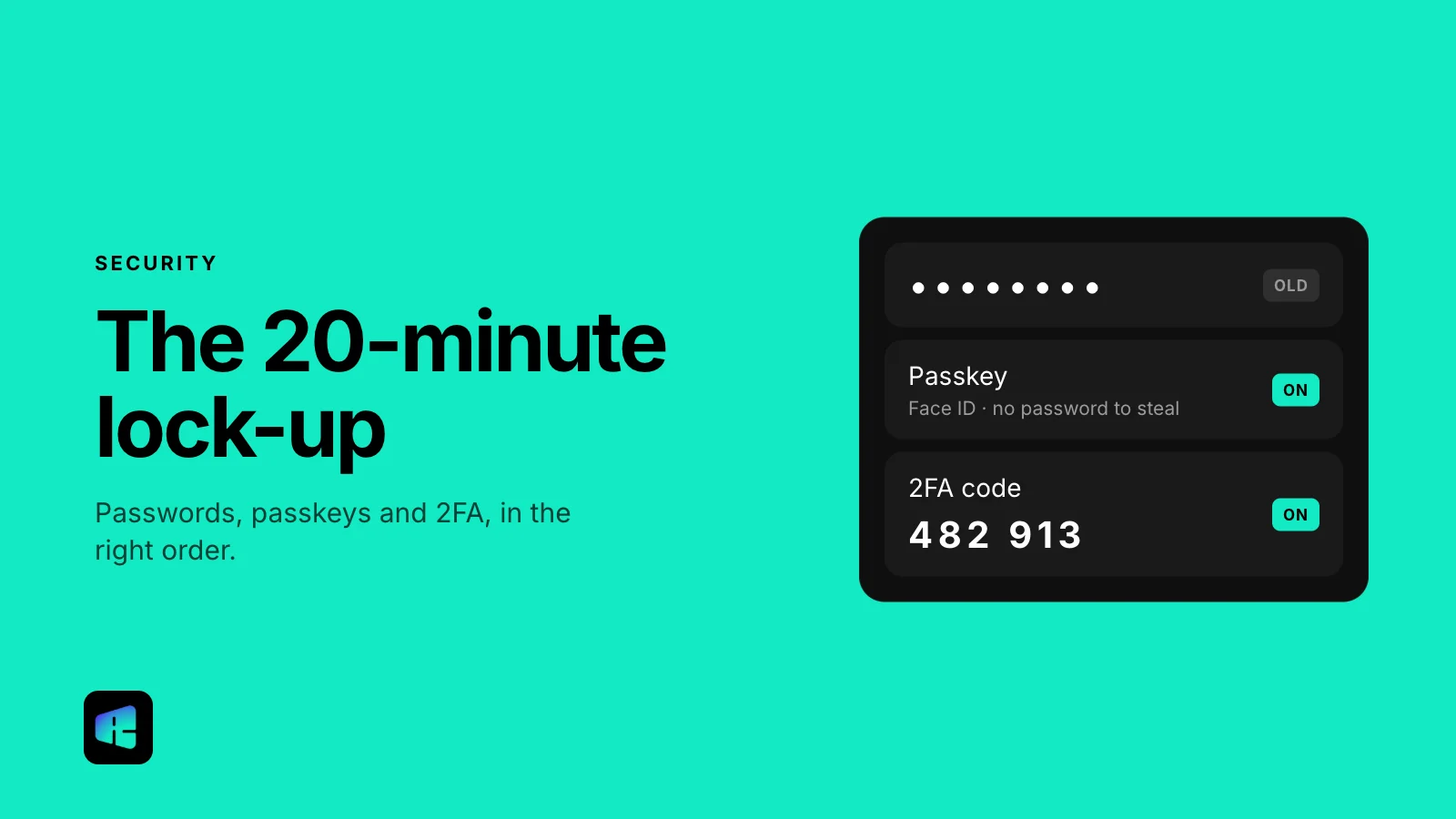
- Passkeys or security keys, covered below. This is the strongest option where a site supports it.
- Authenticator app codes (Google Authenticator, Microsoft Authenticator, or the built-in code generator in Apple’s Passwords app). The code is generated on your phone and never travels over the phone network.
- Codes by text message. These are weaker, because a scammer can sometimes talk a carrier into moving your number to their SIM card, or simply ask you for the code. They are still far better than no second factor.
Turn on 2FA for email first, then for your bank, your Apple or Google account, and anything that stores a card. Apple Accounts created on iOS 13.4 or later already have it turned on. Save the backup codes the site offers somewhere you can find them, such as a note in your password manager.
Step 3: Let a password manager remember for you
The biggest risk with passwords is reusing them. When one site leaks, attackers try the same email and password on many other sites. With a password manager you can use a different password everywhere, because you never have to remember any of them.
You probably already have a good one on your phone. On iPhone and Mac, it’s the Passwords app (iOS 18 and macOS Sequoia or later; on earlier versions, iCloud Keychain under Settings › Passwords). On Android and in Chrome, it’s Google Password Manager. Both are free, sync across your devices and fill in logins automatically. If you use a mix of Apple, Windows and Android devices, a separate manager that works on all of them may be more convenient. For most people, the built-in ones are enough.
You don’t have to move everything over tonight. Each time you log in somewhere over the next few weeks, let the manager save the password, and change any you know you reuse.
Do one thing now, though: make sure your phone itself has a passcode of at least six digits and that Find My (iPhone) or Find Hub (Android) is on. Anyone who can unlock the phone can open the password manager, and a four-digit code on a lost phone is easy to guess.
Step 4: Switch to passkeys where offered
A passkey replaces the password entirely. When you create one, your phone or computer makes a pair of matching keys. The private one stays with you, on your device and in your synced password manager. The public one goes to the website. To sign in, you unlock your phone with Face ID, a fingerprint or your screen-lock PIN, and the device proves to the site that it has the matching private key.
You don’t type anything, so a data leak has nothing useful to steal and a fake login page has nothing to collect. A passkey only works on the real site it was made for, which is why it stops most phishing attempts.
Google, Apple, Microsoft, Amazon, PayPal and more and more banks support them. Look for “Create a passkey” in the account’s security settings, or accept the prompt when a site offers one at login. Passkeys sync through iCloud Keychain or Google Password Manager, so a new phone gets them automatically.
Step 5: Check for breached passwords
Both built-in managers check your saved passwords against known data leaks. On iPhone, open the Passwords app and tap Security. In Google Password Manager, open passwords.google.com and run Password Checkup. Each one lists compromised, reused and weak passwords and helps you change them.
Fix compromised ones first, then reused ones on accounts that matter. You can also enter your email address at haveibeenpwned.com, a free service that shows which known breaches included it. Use that list to decide which old accounts to close or update.
What you can skip
Some common advice takes effort and adds little protection:
- Changing passwords on a schedule. US federal guidance from NIST no longer recommends forced periodic changes. Change a password when there’s a reason, such as a breach alert.
- Memorizing complex passwords. The manager handles that. The only ones worth memorizing are your email account and your device passcode.
- Paying for “dark web monitoring.” The free breach checks in your password manager and on haveibeenpwned.com do most of what these services offer.
- Truthful answers to security questions. Your mother’s maiden name or the name of your first school can often be found online. Where a site insists on these, save a random answer in your password manager instead.
If you only have 20 minutes, spend them on your email account and on 2FA. Those two steps block the most common ways accounts get taken over.