Is public Wi-Fi safe in 2026? Less scary than it used to be, with three real exceptions
HTTPS fixed the biggest problem with public Wi-Fi years ago. Fake hotspots, visible domain names and auto-join settings still need a few minutes of your attention.

The short version
- Because almost every site uses HTTPS, people on the same Wi-Fi can no longer read what you do on those sites.
- Three risks remain: fake hotspots with login pages, the network seeing which sites you visit, and phones that auto-join any network with a familiar name.
- Check the network name with staff, turn off auto-join, and forget networks after a trip.
- For banking, use your phone’s hotspot. On networks you use for days, a VPN hides the sites you visit from the operator.
In 2010, someone at the next table in a coffee shop could install a free browser add-on and take over other people’s logged-in sessions on the open network. It worked because most sites encrypted the login page and sent everything after it unencrypted. Today nearly every site and app uses HTTPS. Google reports that since about 2020, 95 to 99 percent of page loads in Chrome have used it, and its Transparency Report tracks the numbers by platform.
So public Wi-Fi is a lot safer than its reputation. It still matters in three situations, and each one has a simple fix.
What HTTPS already protects
When a site uses HTTPS, everything on the page travels encrypted between your device and the site: passwords, messages, card numbers and the content itself. Other people on the network, and whoever runs it, see only scrambled data. Browsers show a clear warning when a page is not secure.
The FBI has long advised against banking and other sensitive transactions on public networks, and that’s still sensible. The reasons behind the advice are just narrower than they used to be.
Exception 1: the network itself is fake
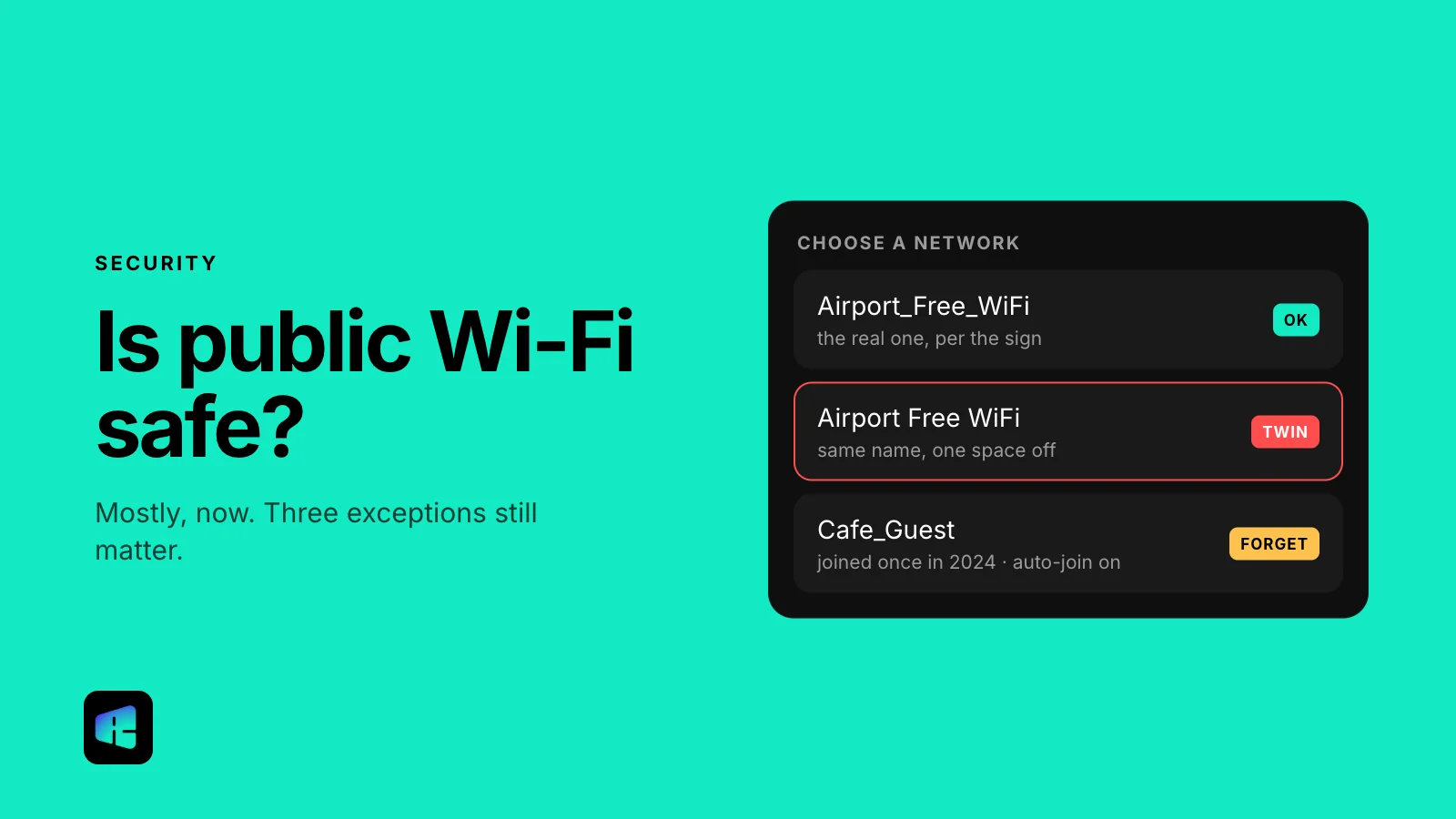
An evil twin is a hotspot named to look like the real one, such as “Airport_Free_WiFi” next to “Airport Free WiFi.” Anyone can set one up with a laptop or a cheap device. HTTPS still protects your traffic to real sites, but the fake network controls the first page you see.
That first page is the captive portal, the screen that appears before you get online. A legitimate one asks you to accept terms or type a room number. If it asks for your email password, a social media login or card details, disconnect.
- Ask staff for the exact network name, or check the sign at the counter.
- Never type a password for another service into a Wi-Fi login page.
- If a page says you must install a profile, certificate or app to get online, decline and use cellular data instead.
Exception 2: the network sees which sites you visit
HTTPS hides what is on the page, but not which site you’re visiting. Your device looks up site names through DNS, which is often unencrypted. The site name is also usually visible while the encrypted connection is being set up, in a field called SNI, unless the site and your browser use Encrypted Client Hello (ECH), which Chrome and Firefox support and Cloudflare turns on for many sites. So the network operator can log that you opened your bank, a clinic or a job board, even though it can’t see what you did there.
On a café network for half an hour, that matters little. On a hotel or conference network you use for a week, it becomes a fairly detailed list. Encrypted DNS hides the lookups but not the SNI. On a Pixel, for example, go to Settings > Network & internet > Private DNS and enter a provider hostname such as dns.google. Other Android phones have a similar setting.
A VPN hides both: while it’s connected, the local network sees little more than one encrypted connection to the VPN server. During a reconnect, some traffic can briefly go out unprotected. The VPN provider can see the domains instead, so read its privacy policy before you choose one.
Exception 3: your phone remembers every network
Phones rejoin known networks automatically. Once you’ve connected to “Hotel Guest,” your phone will try to join any open network with that name in the future, including one somebody else set up. Common network names at airports and hotel chains are the easiest to copy.
- iPhone: Settings > Wi-Fi, tap the (i) next to the network, and turn off Auto-Join. To remove the network completely, tap Forget This Network.
- Android: Settings > Network & internet > Internet (or Wi-Fi), then touch and hold the saved network, or tap the gear next to it, and tap Forget. Some phones also have a switch to stop connecting automatically. Labels vary by manufacturer.
- After a trip, go through the saved list and forget the hotel and airport networks.
What about public USB chargers?
The FBI and the FCC have both warned travelers about public USB charging stations. The risk, called “juice jacking,” is that a tampered port could try to install malware or copy data. Neither the FBI nor the FCC has pointed to a confirmed real-world case (see the FCC’s guide).
Plugging your own charger into a wall outlet removes the risk at almost no cost. If your phone asks whether to trust a connected device while you’re only charging, tap Don’t Trust. Beyond that, there’s little reason to worry about chargers at the airport. In 2025 researchers at TU Graz showed an attack they called ChoiceJacking, in which a rigged charger tricks a phone into allowing a data connection, but only in lab conditions.
A short checklist
- For banking or anything sensitive, use your phone’s hotspot instead of the venue’s Wi-Fi. On cellular data you aren’t sharing a network with strangers.
- Confirm the network name with staff before joining.
- Turn off auto-join and forget networks after trips.
- On networks you use for days, turn on a VPN so the operator can’t log the sites you visit.
RealityVPN’s free plan gives you 200 MB a month. A typical mobile web page is about 2 to 2.5 MB, so that covers email and a few dozen pages on a short trip.